How to Back Up Important Folders to OneDrive in Windows 11

This guide explains how to use onedrive-folder-backup-syncing-across-windows-11-devices/" class="sal-link" rel="noopener" target="_blank" data-sal-id="10851">OneDrive backup Windows 11 to keep your files safe. The OneDrive app allows you to sync files from your computer to the Microsoft Cloud. This provides cloud storage synchronization so you can reach your files from your phone or other computers.
Why back up your files? Backing up ensures that your files are safe if your computer breaks or is lost. It provides data redundancy, meaning you have a copy of your work in a different location.
What happens when done? Your chosen folders will be uploaded to the cloud. Any changes you make to these files will automatically update on all your linked devices.
OneDrive Backup vs. Windows Backup
It is important to know the difference between these tools. OneDrive is for syncing active files you use every day. The Windows Backup utility is designed to save your system settings, app list, and preferences for a full system restore. Use OneDrive for your personal files and Windows Backup for your system state.
| Feature | OneDrive Backup | Windows Backup Utility |
|---|---|---|
| Purpose | File Syncing | System Recovery |
| Storage | Microsoft 365 Cloud | Microsoft Account Cloud |
| Access | Anywhere | During PC Setup |
Manage OneDrive Backup in Windows 11
If you haven’t installed it yet, download it from the official Microsoft OneDrive download page. Note: Administrative privileges may be required to install or update the OneDrive application on some system configurations.
Open the OneDrive app from the Start menu or by browsing to C:\Program Files\Microsoft OneDrive\OneDrive.exe. You can also quickly access the OneDrive icon from the Taskbar overflow.

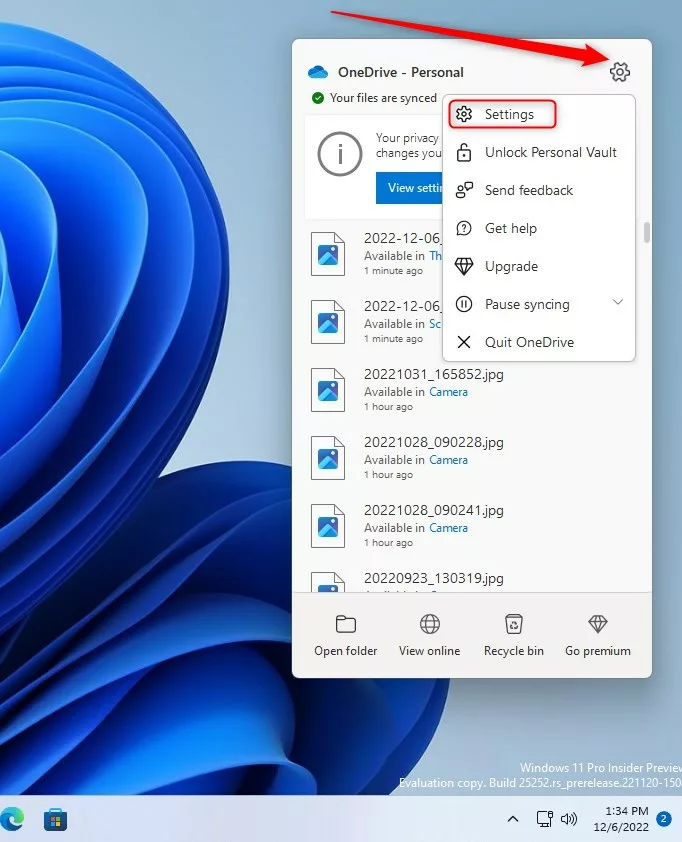
When the app opens, click the Help & Settings (gear) icon and select Settings.
On the Settings screen, click the Manage backup button under the Sync and Backup section.

You will see a list of folders like Documents, Pictures, Desktop, Music, and Videos. Use the toggle button to turn backup On or Off for each folder.

Verifying Your Sync
To ensure your files are successfully syncing, look for the green checkmark icon on your files in File Explorer. A solid green circle with a white checkmark means the file is saved to your device and the cloud. A blue icon means it is syncing.
Restoration Process
If you lose a file, you can recover it easily. Right-click the file in your OneDrive folder and select Version history. This allows you to restore older versions of your work. You can also check the Recycle Bin on the OneDrive website to recover deleted items.
Troubleshooting Common Errors
If you see error code 0x80070005, it usually means you do not have permission to access a file. Ensure you are signed in as an administrator. If you get a ‘File is open and cannot be moved’ error, close the program using that file before trying to sync again.
OneDrive uses reparse points and junction points to link your local folders to the cloud. If these become corrupted, you may need to reset the app. Be aware of file path length limits; if your file path exceeds 260 characters, the file will not sync.
Summary
OneDrive is a powerful tool for automatic file sync and file recovery. By managing your backup settings, you ensure your important data is protected in the cloud. Remember to check for green checkmarks to verify sync status and keep an eye on your storage limits to maintain seamless access to your files.
What happens if I stop backing up my folders?
If you stop backing up your folders, the files will remain in your OneDrive cloud storage but will no longer sync with your local computer. They will be removed from your local Desktop, Documents, or Pictures folders and moved to a folder named ‘Shortcuts to OneDrive’ on your PC.
Can I back up folders other than Desktop, Documents, and Pictures?
By default, OneDrive focuses on your main user folders. To back up other folders, you must manually move them into your OneDrive folder. Once moved, they will sync automatically with the cloud, allowing you to access them from any device connected to your Microsoft account.
Does OneDrive backup count against my storage limit?
Yes, all files synced through OneDrive count against your total Microsoft 365 storage limit. If you exceed your storage, your files will stop syncing until you delete unnecessary items or purchase more cloud storage space through your Microsoft account settings.
Was this guide helpful?




[…] can automatically back up your essential folders (your Desktop, Documents, and Pictures folders) on your device with […]
[…] can automatically back up your essential folders (your Desktop, Documents, and Pictures folders) on your device with the OneDrive […]
[…] can automatically back up your essential folders (your Desktop, Documents, and Pictures folders) on your device with the OneDrive […]
[…] can automatically back up your essential folders (your Desktop, Documents, and Pictures folders) on your device with the OneDrive […]
[…] can automatically back up your essential folders (your Desktop, Documents, and Pictures folders) on your device with the OneDrive […]
[…] By default, your device’s essential folders (your Desktop, Documents, and Pictures folders) will automatically be backed up to Microsoft cloud online. […]
[…] can automatically back up your essential folders (your Desktop, Documents, and Pictures folders) on your device with the OneDrive […]
[…] can automatically back up your essential folders (your Desktop, Documents, and Pictures folders) on your device with […]
[…] By default, your device’s essential folders (your Desktop, Documents, and Pictures) will automatically be backed up to Microsoft cloud online. […]
[…] By default, your device’s essential folders (your Desktop, Documents, and Pictures folders) will automatically be backed up to Microsoft cloud online. […]
[…] can even automatically back up important folders like Desktop, Documents, and Pictures to OneDrive. This keeps your files safe and synced on all […]
[…] files and folders to the cloud. This lets you reach your documents from any device. You can also automatically back up your essential folders your important folders like Desktop and […]
[…] also backs up preferences, such as your language and accessibility choices. If OneDrive is turned on is enabled, your chosen folders will automatically upload to the cloud. What happens when done? […]